
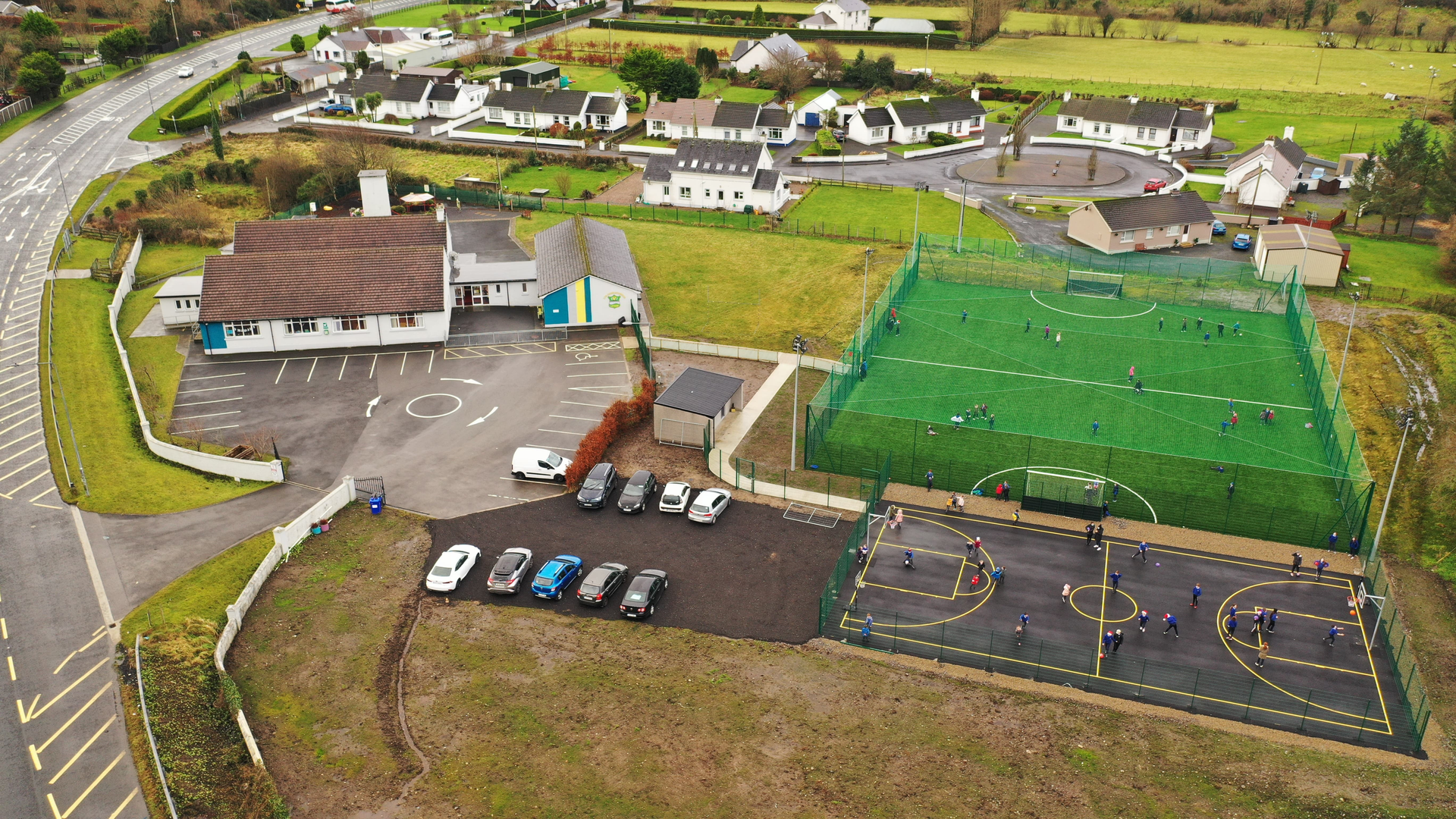
Summer mode: activated. Responsibilities: declined! The staff have left the building 🙌☀️🏃♀️

Comhghairdeas! Well done to Senior Infants on obtaining the best class attendance in Term 3! We hope you enjoyed your prize!

SUMMER HOLIDAYS! ☀️😎 The sun may not be shining just yet but that did not dampen our spirits on the eve of our summer holidays. Aren’t the Junior Infants a cool bunch 👏🎵😍

Turas Scoile go dtí Five Star Fun! Junior & Senior Infants had so much fun on their school tour at 5 Star Fun ⭐️⭐️⭐️⭐️⭐️ They enjoyed soft play, had some very close go karting races 🏎️, and even had time for a disco 🪩🕺💃 They enjoyed hot food for lunch and were treated to some ice cream for dessert 🍦 What a way to enjoy our last week at school 🤩


No Events to show
Help - Adding External Calendars
Below you will find instructions on how to add calendars from different platforms:
Google Calendar
- 1. Open Google Calendar in your browser
- 2. Click the settings gear icon next to your calendar
- 3. Select "Settings and sharing"
- 4. Scroll down to "Access permissions" section
- 5. Copy the "Public URL to this calendar" link
- 6. Paste the link in the "Calendar link" field
https://calendar.google.com/calendar/embed?src=example@gmail.comOutlook Calendar
- 1. Open Outlook Calendar in your browser
- 2. Click "Share" next to your calendar
- 3. Select "Publish calendar"
- 4. Copy the "ICS" or "Web link"
- 5. Paste the link in the "Calendar link" field
https://outlook.live.com/calendar/action/view?id=exampleApple iCloud Calendar
- 1. Open iCloud Calendar in your browser
- 2. Click "Share" next to your calendar
- 3. Select "Public calendar"
- 4. Copy the "Public calendar" link
- 5. Paste the link in the "Calendar link" field
https://p123-calendars.icloud.com/published/2/exampleICS File
- 1. Find a link to an .ics file
- 2. The link must end with .ics
- 3. Paste the link in the "Calendar link" field
- 4. Example: https://example.com/calendar.ics
https://example.com/calendar.ics


